

Bellissimo Portal Site
List of Error Messages
(MCT0001) Update failed. Please restart the machine.
An incorrect file was used to update the machine’s firmware, causing a failure to write the file. Turn the machine off, then on again, prepare the correct file, and then try updating again.
(MCT0002) Update failed. Please restart the machine.
Writing failed while updating the machine’s firmware. Restart the machine, and then try updating again using a USB flash drive. If the operation repeatedly fails, contact the retailer where this machine was purchased or a Brother authorized service center.
(MCT0003) Insert the mat. A material other than the compatible mat has been inserted or the mat option setting is incorrect.
An incompatible mat was inserted, or material was fed without a mat, but the [Mat] option in the [Select Mat Size] screen is switched on. Press  (Feed Button) to eject the material or mat, and then use a compatible mat, or when using Simple Matless Cutting, switch off [Use Mat] in the [Settings] screen.
(MCT0004) Cannot eject the mat.
(MCT0005) The mat is not inserted.
Please insert the mat.
(MCT0006) This mat cannot be used.
Please use a compatible mat.
(MCT0007) This holder cannot be used.
Please use a compatible holder.
(MCT0008) The holder is incorrect.
Please attach the appropriate holder.
(MCT0009) Replace with a 12 x 24 inch mat.
Data larger than 12" × 12" (305 mm × 305 mm) was transferred to the machine. Replace the mat with the 12" × 24" (305 mm × 610 mm) mat.
(MCT0010) Failed to initialize the blade position.
(MCT0011) Failed to initialize the carriage.
Turn the machine off, then on again. To cut the same data again, transfer it from the History screen.
(MCT0012) Insert the material.
Please press the Feed button to insert the material.
(MCT0013)The material is not inserted at the correct angle.
Please reinsert the material.
(MCT0014)Raise the shaft release lever to lock the shaft.
The shaft release lever is lowered.
(MCT0015) Failed to detect the registration marks.
There are no alignment marks in the correct positions.
Situation 1 : The registration marks are not printed correctly.
Situation 2 : The material is not oriented correctly.
Situation 3 : The paper size combination is incorrect.
-
Example 1 :
There are no registration marks printed on the material.
Solution : Registration marks are automatically added to the print data in the four corners, according to the material size. Please create a PDF with marks added using Artspira, and then print that PDF.
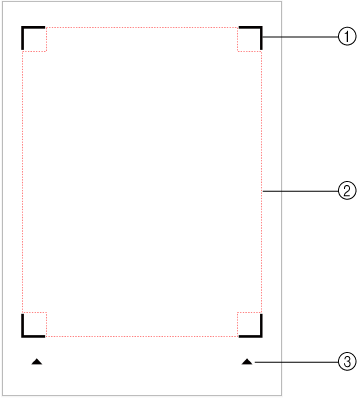
(1) Registration mark
(2) Data placement area
(3) Material feeding direction (Simple Matless Cutting only) -
Example 2 :
There are printing defects (such as smudges or missing marks) or smudges on the registration marks.
Solution : Check the printer's status and try printing again.

-
Example 1 :
It is not correctly positioned vertically, using the top-left corner of the material as the reference point.
Solution : Insert it, align the left edge of the material with the arrow into the machine.
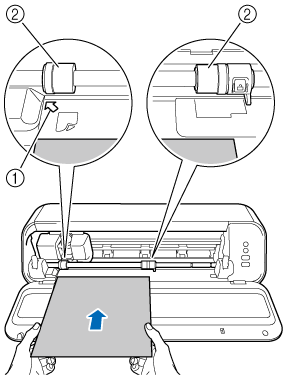
(1) Arrow into the machine
(2) Feed Roller -
Example 2 :
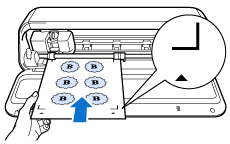
The material is loaded with the side bearing the registration marks facing down. (The material is upside down.)
Solution : Place it with the side marked with the registration mark and material feeding direction marks facing up.
-
Example 3 :
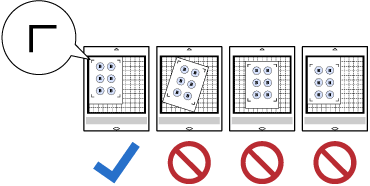
When cutting with a cutting mat, the material is not positioned in the correct direction on the adhesive side of the mat.
Solution : Attach the material in the upper-left corner of the mat so that the registration marks and feeding direction are aligned.
-
Example :
The paper size in the cutting data does not match the paper size in the print data.
Solution : Using Artspira, please set the paper size for the cutting data to match that of the printing data.
(MCT0016) The material is too thick.
Cutting was canceled.
Material of this thickness cannot be cut.
(MCT0017) The mat is inserted.
[Mat] in the [Select Mat Size] screen is switched off, but a mat was fed. When using a cutting mat, switch on the [Mat] setting before editing, or change the [Use Mat] setting in the [Settings] menu from the [Preview] screen.
(MCT0018) The material is too hard.
Cutting was canceled.
Material of this hardness cannot be cut.
(MCT0019) An unexpected error has occurred.
Please turn the power off and on again.
(MCT0020) The material is not inserted correctly.
-
Example :
The size of the material or mat does not match the position of the roller.
Solution : Please align the size of the material or mat with the position of the roller.
(1) Arrow into the machine
(2) Feed Roller -
Example :
The shaft release lever is pushed up and is not locked.
Solution : Push the shaft release lever up to return it to its original position.
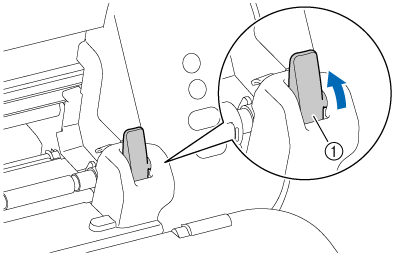
(1) Shaft release lever -
Example :
The tip of the material or mat is bent.
Solution :- For mats: Replace with a new mat.
- For materials (less than 305 mm wide): Use a mat for transport.
-
For materials (305 mm wide): Set the feed supporter and transport the material.
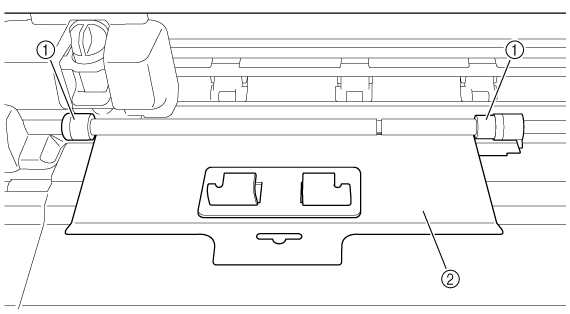
(1) Feed Roller
(2) Feed Supporter
-
Solution :
Press the Feed Button to eject the material.
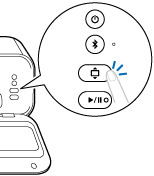
(MCT0026) The cut position is outside the supported range.
This error may occur if the pattern is near the edge of the editing area and the material is not fed straight or if the print position is misaligned. Remove the material, and then reinsert it so that it is aligned. If the error persists, use the [Auto Layout] function to align the pattern, then set the material correctly in the printer, and try to print again.
Situation 2 : Due to printing misalignment, the actual cut position may differ from the expected position.
-
Example 1 :
It is not correctly positioned vertically, using the top-left corner of the material as the reference point.
Solution : Insert it, align the left edge of the material with the arrow into the machine.
(1) Arrow into the machine
(2) Feed Roller -
Example 2 :
When cutting with a cutting mat, the material is not positioned in the correct direction on the adhesive side of the mat.
Solution : Attach the material in the upper-left corner of the mat so that the registration marks and feeding direction are aligned.
-
Example :
A pattern is placed at the corner of the coverage area.
Solution : Move the pattern slightly inward from its current position.
*When using the stamp feature, enabling AutoLayout will automatically position the pattern slightly inward.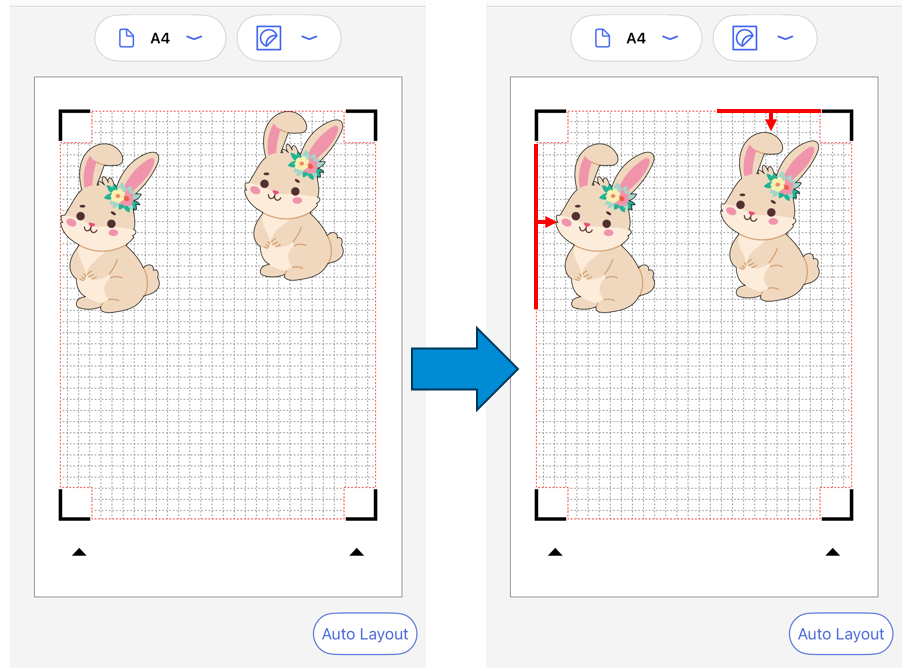
(MCT0027) Raise the Mode Change Lever on the left side of the machine.
The mode change lever is set to the ▼ position. In the following cases, set the lever to the ▲ position, and then press  (Start/Stop Button).
- Drawing
- Cutting using a mat
(MCT0028) Lower the Mode Change Lever on the left side of the machine.
The mode change lever is set to the ▲ position. When using Simple Matless Cutting, set the lever to the ▼ position, and then press (Start/Stop Button).
(MCT0029) The material may be jammed or deformed.
Set the mode change lever (on the left side of the machine) to the ▲ position and unlock both of the shaft release levers.
Turn the machine off and remove the holder.
Slowly pull out the material or mat by hand.
To cut previously transferred data again, transfer it from the History screen.
(MCT0030) The material is too thick, or the Feed Supporter is still attached.
If the material is too thick, use different material.
If the Feed Supporter is still attached, remove it, press (Start/Stop Button), and then try cutting again.
(MCT0031) An error has occurred with the recognition sensor.
After removing the material, please turn the power off and on again.
To cut the sent design again, please resend it from the Settings > History
If the error occurs repeatedly, please contact Brother support through the support website.
(MCT0032) An error has occurred with the recognition sensor.
After removing the material, please turn the power off and on again.
To cut the sent design again, please resend it from the Settings > History.
If the error occurs repeatedly, please contact Brother support through the support website.
(MCT0033) An error has occurred with the recognition sensor.
After removing the material, please turn the power off and on again.
To cut the sent design again, please resend it from the Settings > History.
If the error occurs repeatedly, please contact Brother support through the support website.
(MCT0034) Update file not found.
Writing failed while updating the machine’s firmware. Make sure that only the latest update file is saved on the USB flash drive, turn the machine off, then on again, and then try updating again.
(MCT0035)The cut position is outside the supported range.
Please turn the power off and on again, and make sure the design is placed within the cutting area.
(MCT0036) The internal temperature of the machine has increased.
If the machine overheats from overuse, it will shut down. Turn off the machine and leave it alone for 30 minutes before turning it on again. If the error message in Artspira appears when cutting or drawing again, the machine is not cool down enough and needs additional time. Turn off the machine and let it cool completely.