


| | |
| 1 | Choose the Apple Menu - [System Preferences] – [Print & Scan] or [Printers & Scanners]. | ||
| 2 | Choose your Brother printer in the [Printers] section. | ||
| 3 | Verify which printer driver is used. This can be found next to [Kind]. If “(Model name) - Air Print” is displayed in [Kind], the Air Print printer driver is chosen. The Air Print printer driver does not support P-touch Editor, so you should add the CUPS printer driver. | ||
| 4 | Click the [+] button. 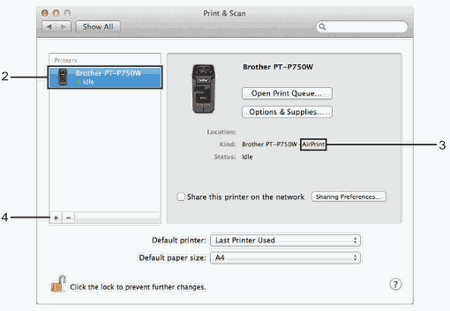 | ||
| 5 | Click the [Default] icon which is located at the top of the dialog box. | ||
| 6 | Choose your machine from the [Name] list. | ||
| 7 | Make sure that “Brother XXXXXX CUPS” is selected in the [Use] list. (Where XXXXXXX is your model name.)  Note Note
| ||
| 8 | Click [Add]. 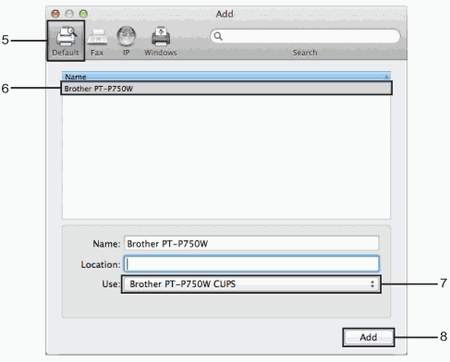 | ||
| 9 | The printer is now available in the [Printers] section. Close the System Preferences window. |
| | |