

Home > Standalone Printing > Call Up the Transferred Template on the Printer's LCD and Print > Print a Template Linked to a Database


Print a Template Linked to a Database
- Make sure the LCD is in the Template List Screen as shown below.
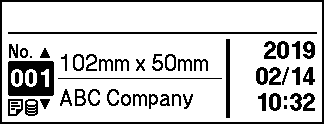
If it is not, set it to the Template List Screen.
- Press Menu.
- Press
 or
or  to select the following:
 - Select [Settings]. Press OK.
- Select [Home Screen]. Press OK.
- Press or to select [Template List Screen].
- Press or to select a template, and then press OK.
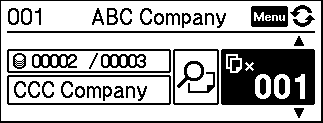
- Press or to select the database record, and then press OK.
- Press and to set the number of labels you want to print.
- NOTE
-
To change print number of labels for future use, press Menu and go to [Template Settings] and set the [Confirm Print] option to [On].
The next time you print using this template, the print settings screen appears, allowing you to change the number of labels using
and . - When pressing Menu after selecting the template, the position of cursor in the template will change.
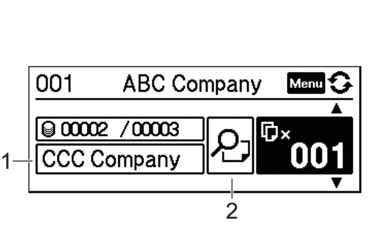
- To view the object in the template, press Menu to select the object button (1), and then press OK.
- To view a print preview, press Menu to select preview button (2), and then press OK.
Did you find the information you needed?